quick bytes
Published on April 21, 2025
share via:



Taking a screenshot is one of the easiest ways of capturing anything that appears on your screen. From taking snapshots while FaceTiming your loved ones because they look cute, reading a meaningful quote on your phone, or while watching your favourite chef make the delicious recipe, knowing how to capture a screenshot in iPhone or on other Apple devices is a must.
However, if you often find yourself struggling to take screenshots on your Apple devices or you often tend to forget which buttons to press, don’t worry, you are not alone. After reading this blog, we are sure you won’t only know one but different methods of capturing screenshots on your iPhone devices quickly and quite effortlessly. So, stay with us till the end and learn the smart ways to use your mobile handsets and how you can reap maximum benefits of Vi prepaid and postpaid plans.
We often come across questions like ‘How can I take screenshots in iPhone?’ or ‘Why am I unable to take a screenshot on my iPhone?’. To put an end to all your dilemmas once and for all, here is how you can take screenshots of different Apple devices:
If you own an iPhone X or later models, you can easily take a screenshot by pressing the power and volume up buttons simultaneously. Make sure you don’t press the volume down button or press the power button for too long, as you won’t be able to take a screenshot, and you might end up turning your screen off. Another method to take a screenshot is by simply commanding Siri to take a screenshot for you, but this method may not be as quick as the first method.
Alternatively, if you own an iPhone model older than the iPhone X version, you can take a screenshot by pressing the home button and the power or side button together.
Similar to iPhone devices, you can take screenshots on your iPad (latest models) by quickly pressing the volume up and power or side button together. For older iPad models, press the home button along with the top button.
Seamlessly take screenshots on your MacBook by pressing shortcut keys for a specific or entire window on the screen. Capture the entire screen by pressing shift + command + 3, capture a selected area on the screen by pressing shift + command + 4, capture a window or menu by pressing shift + command + 4 + space bar, and to release the toolbar option, press shift + command + 5 on your screen, and you will get different options to take screenshot and record your screen the way you want.
Apart from pressing the side and volume up buttons, there is another way to take screenshots on your iPhone mobile devices. However, this method is only applicable to iPhone models released after the iPhone X version. You can take screenshots on iPhone Devices by tapping on the back or the Apple logo on the back of your phone. To activate this feature, go to your settings, click on ‘Accessibility’ then on ‘Touch’, and choose ‘Back Tap’. Then select ‘Double Tap’ or ‘Triple Tap’ as per your preferences, and that’s it, you can enjoy taking screenshots by simply tapping on the back of your phone.
If you are still wondering ‘How to take screen video on iPhone?’, don’t worry, we have got you covered. Firstly, you would need to customise your control centre option by adding the built-in ‘Screen Recording’ feature for easy access. So, open your settings, click on ‘Control Centre’, then select ‘Customise Controls’ and find ‘Screen Recording’ on the screen and add it to your ‘Control Centre’ tool. Now, record your screen anytime by clicking on the ‘Screen Recording’ option and end the recording by clicking on the same option again.
Let’s be honest, you can only enjoy using your iPhone to its maximum potential when you have fast connectivity and networking services. And, with Vi prepaid and postpaid plans, you can take your internet and networking experience to the next level with blazing fast internet speed, unlimited local and STD calling, weekend data rollover, backup data, subscription to OTT platforms, and a lot more, that too at budget-friendly prices! Here are some flexible and high-speed internet plans to choose from.
Prepaid:
|
Price |
Validity |
Benefits |
|
84 Days |
- 2GB/Day - Truly Unlimited Calls - 100 SMS/Day - 84 days access to 16 OTTS via ViMTV - Half Day Unlimited Data (12 midnight-12 noon unlimited data) - Weekend Data Rollover - 2GB Backup Data (Data Delights) |
|
|
365 Days |
- 2GB/Day - Truly Unlimited Calls - 100 SMS/Day - 1 year of JioHotstar subscription - Half Day Unlimited Data (12 midnight-12 noon unlimited data) - Weekend Data Rollover - 2GB Backup Data (Data Delights) |
Subscribers using our prepaid services in Karnataka, Andhra Pradesh, Rajasthan, Madhya Pradesh, Odisha, Assam, North East, Jammu and Kashmir, and Himachal Pradesh circles will be able to access Unlimited Data all day, every day with our Non-Stop Superhero plans.
Postpaid:
|
Price |
Validity |
Benefits |
|
₹451 (Vi Max 451) |
Monthly |
- 50GB with 200GB Monthly Rollover - Unlimited Night Data (12 Midnight to 6 AM) - Unlimited Calls - 3000 SMS/Month - Vi Games: Play Esports, Multiplayer games & more for free on Vi App Choose any 1 free from below: - Vi Movies & TV: Top OTTs in one app (first 3 months free) JioHotstar: 1-year mobile subscription - Sony LIV: 360 days of mobile subscription - Norton: 1-year Norton 360 Mobile Security cover |
|
Monthly |
- 90GB with 200GB Monthly Rollover - 3000 SMS/Month - Unlimited Calls - Unlimited Night Data (12 Midnight to 6 AM) - Vi Games: Play Esports, Multiplayer games & more for free on Vi App Choose any 2 free from below: - Vi Movies & TV: Top OTTs in one app (first 3 months free) - Amazon Prime: 6-months trial with paid yearly auto-renewal - JioHotstar: 1-year mobile subscription - Sony LIV: 360 days of mobile subscription - SwiggyOne: 1-year access (two coupons of SwiggyOne quarterly membership) - EazyDiner: 1-year access (two coupons of EazyDiner quarterly membership) - Norton: 1-year Norton 360 Mobile Security cover |
|
|
₹751 (Vi Max 751) |
Monthly |
- 150GB with 200GB Monthly Rollover - Unlimited Night Data (12 Midnight to 6 AM) - 3000 SMS/Month - Unlimited calls - Vi Games: Play Esports, Multiplayer games & more for free on Vi App Choose any 3 free from below: - Vi Movies & TV: Top OTTs in one app (first 3 months free) - Amazon Prime: 6-month trial with paid yearly auto-renewal - JioHotstar: 1-year TV+Mobile subscription - Sony LIV: 360 days TV+Mobile subscription - SwiggyOne: 1-year access (two coupons of SwiggyOne quarterly membership) - EazyDiner: 1-year access (two coupons of EazyDiner quarterly membership) - Norton: 1-year Norton 360 Mobile Security cover |
|
Monthly (6-month lock-in) |
- Unlimited Data, Unlimited calls - 3000 SMS/Month - Lock-in period: 6 months - Additional benefits: - International Roaming: 7-day i-RoamFree pack (worth ₹2999) - Airport Lounge Access: 4 times per year (Domestic & International) - Vi Games: Play Esports, Multiplayer games & more for free on Vi App Fully loaded with benefits: - Netflix Basic: Watch on 1 device (auto-renewing at no extra cost) - Amazon Prime: 6-months trial with paid yearly auto renewal - JioHotstar: 1-year TV+Mobile subscription - Sony LIV: 360 days of TV+Mobile subscription - SwiggyOne: 1-year access (two coupons of SwiggyOne quarterly membership) - Norton: 1-year Norton 360 Mobile Security cover |
Besides the aforementioned, we also have Postpaid plans that are meant for family usage, and they start from INR 701 per month, and an INR 299 add-on plan that offers extensive connectivity and data benefits. Subscribers using our postpaid services in Karnataka, Andhra Pradesh, Telangana, Rajasthan, Madhya Pradesh, Chattisgarh, Odisha, Assam, North East, Jammu and Kashmir, and Himachal Pradesh circles will be able to access Unlimited Data with the aforementioned plans.
Now that you have reached the end of the blog, we hope you are accustomed to different screen options and methods to elevate the way you operate on your Apple devices. So, go on, try all the different methods of taking screenshots on iPhone, iPad, and MacBook, and find the one that works best for you! Say hello to the smart way of using your devices.
Got the screenshot sorted? Nice! If you’re into making your phone work smarter for you, don’t miss our other quick guides—like how to transfer eSIM from one phone to another, how to transfer contacts from one phone to another or How to hide apps for extra privacy. From how to check call history to how to transfer whatsapp chats from android to iphone, we’ve got all the how-tos you need!
liked this post? here's what to read next:
Horror Web Series: Top 10 Scariest Shows to Watch Online
quick bytes
 Oct 19, 2026

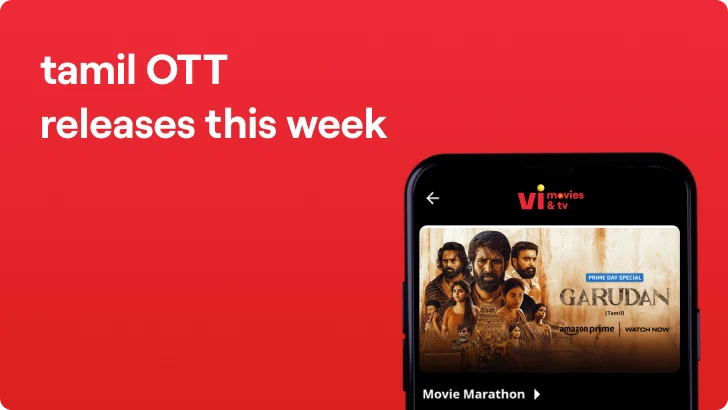
OTT Releases This Week Tamil (இந்த வாரம் தமிழ் OTT வெளியீல்கள்) –17th Oct to 23rd Oct
quick bytes
Oct 16, 2026
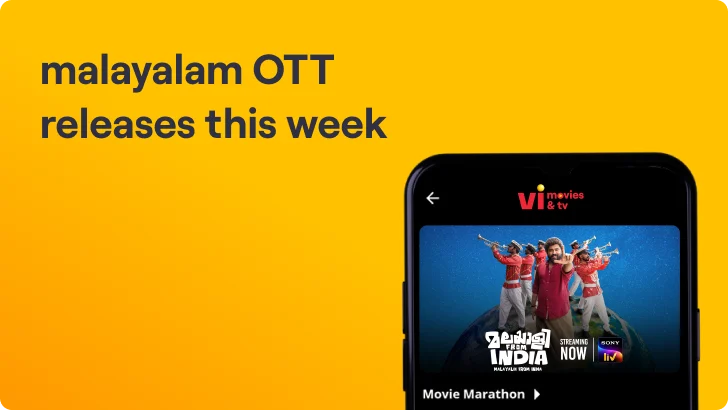
Malayalam OTT Releases This Week (ഈ ആഴ്ച മലയാളം OTT റിലീസുകൾ) – 17th Oct to 23rd Oct
quick bytes
Oct 16, 2026
OTT Releases This Week Telugu (ఈ వారం తెలుగు OTT విడుదలలు) – 17th Oct to 23rd Oct
quick bytes
Oct 16, 2026